

Seven editable layouts for everyday order fulfillment
When an order is ready to leave, the paperwork should make the contents easy to check. These seven Word packing slip templates give the sender and recipient a clear record of the items in each package.
All seven downloads are editable DOCX files. Choose a layout, replace its placeholders with your order details, and print a copy to put inside the box. The quantities and totals are entered manually.
Choose a packing slip
For a straightforward customer order, start with Template 01 or the neutral Template 07. Template 02 has more account and package references; Template 03 adds buyer and vendor codes. For ordered-versus-shipped quantities, use Template 04 or 06. If the order includes a backorder, Template 05 adds a dedicated column and shipment-status checkboxes.
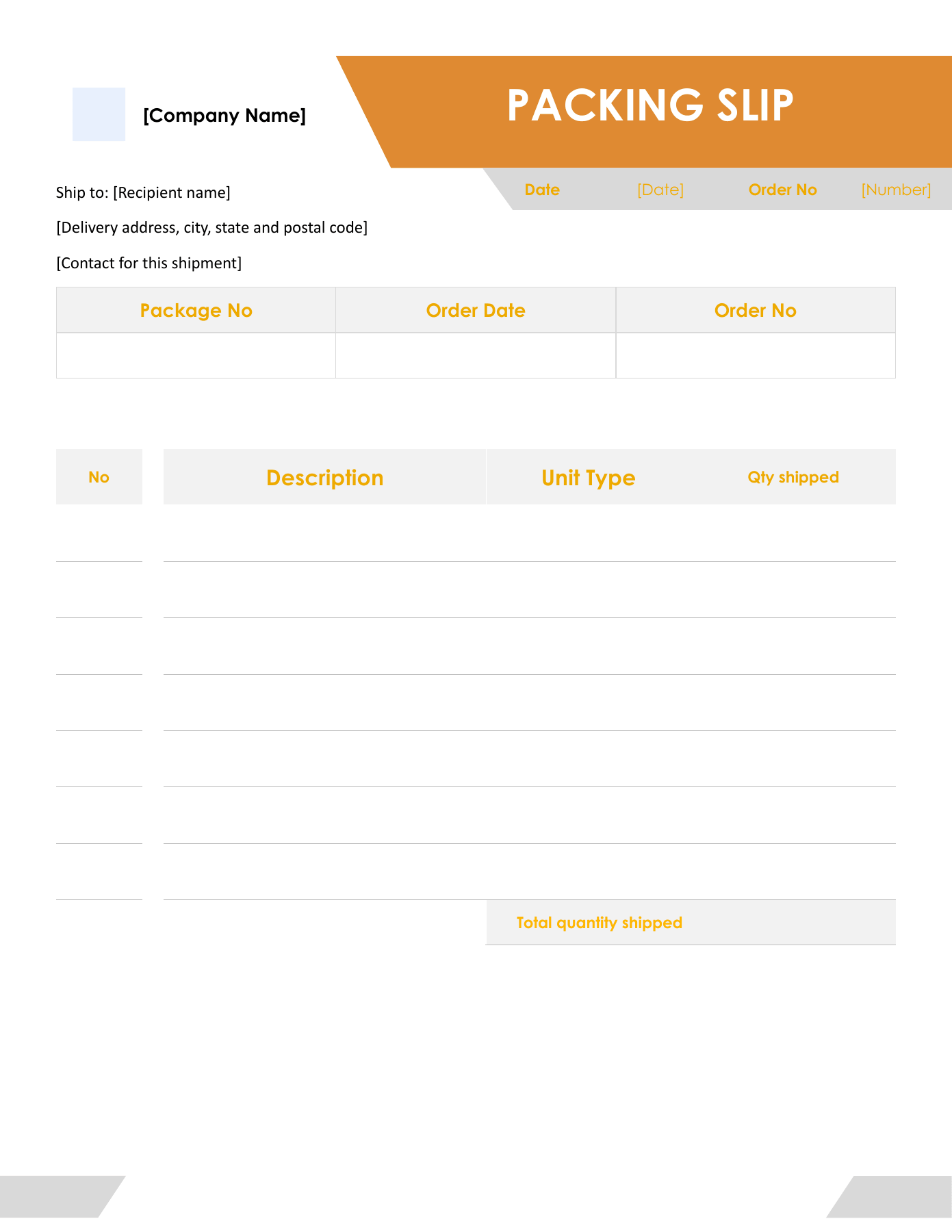
Template 01 — Branded order summary
The orange heading leaves room for your business name, with a ship-to block for the recipient, delivery address and contact. Order and package references sit above an item table with descriptions, unit types and quantities shipped.
This is a useful starting point for routine orders that ship together. If you regularly send fewer items than ordered, choose one of the layouts with separate ordered and shipped columns instead.
Template 01 — Branded order summary
Template 01 — Branded order summary
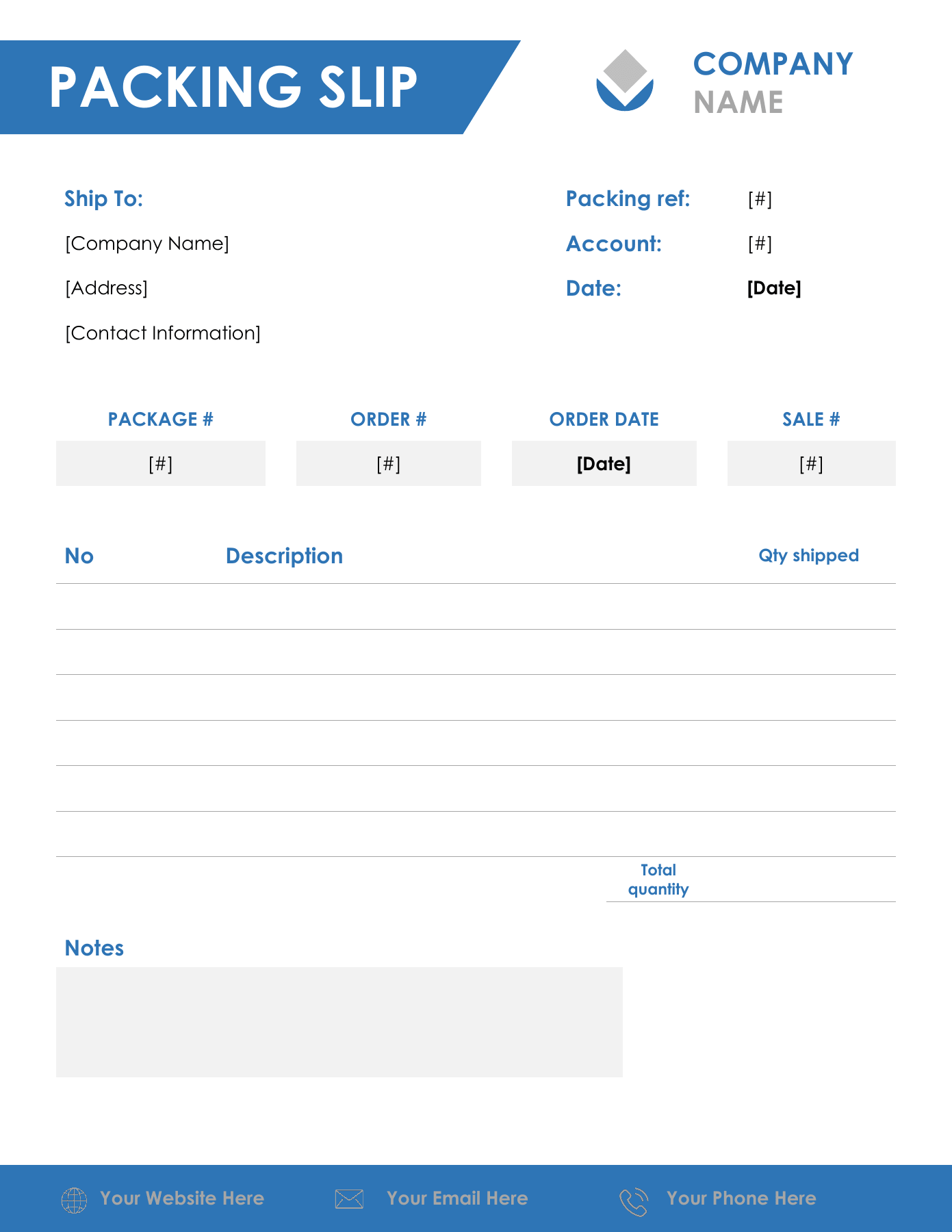
Template 02 — Detailed account and package slip
An account number, packing reference, package number and order details help a fulfillment desk connect the contents to the right customer record. The three-column item table stays simple: item number, description and quantity shipped. A notes area gives you space to explain an exception or add a useful contact.
Remove references your team does not use, such as the sale number. The quantity total is a count of goods, not an amount due.
Template 02 — Detailed account and package slip
Template 02 — Detailed account and package slip
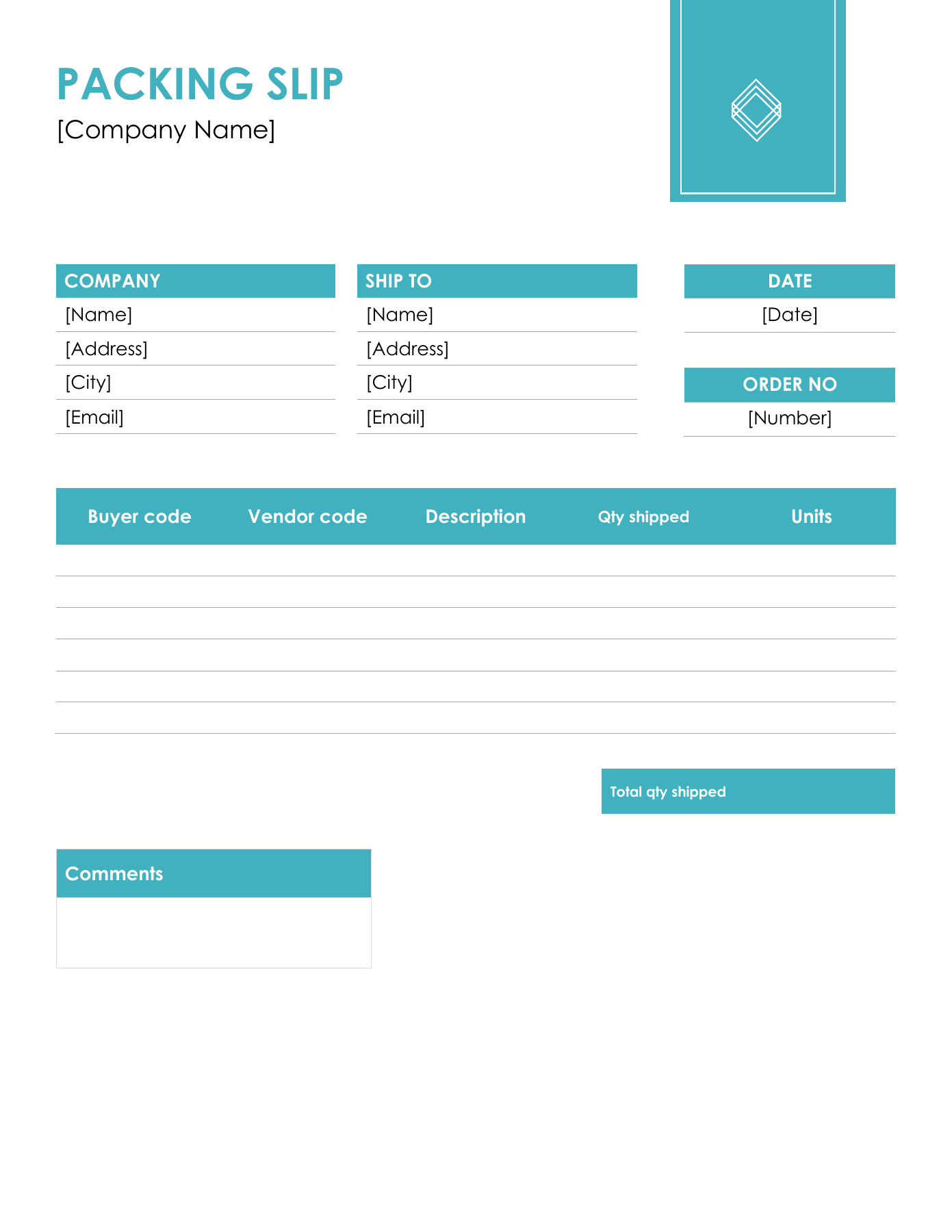
Template 03 — Buyer and vendor reference slip
Use the buyer-code and vendor-code columns when the customer and supplier identify the same item differently. The other columns hold the description, quantity shipped and unit of measure, with company and ship-to details above and comments below.
For example, you can show the customer’s item code alongside your own catalog code without squeezing both into the description. Prices and tax calculations belong on a separate invoice.
Template 03 — Buyer and vendor reference slip
Template 03 — Buyer and vendor reference slip
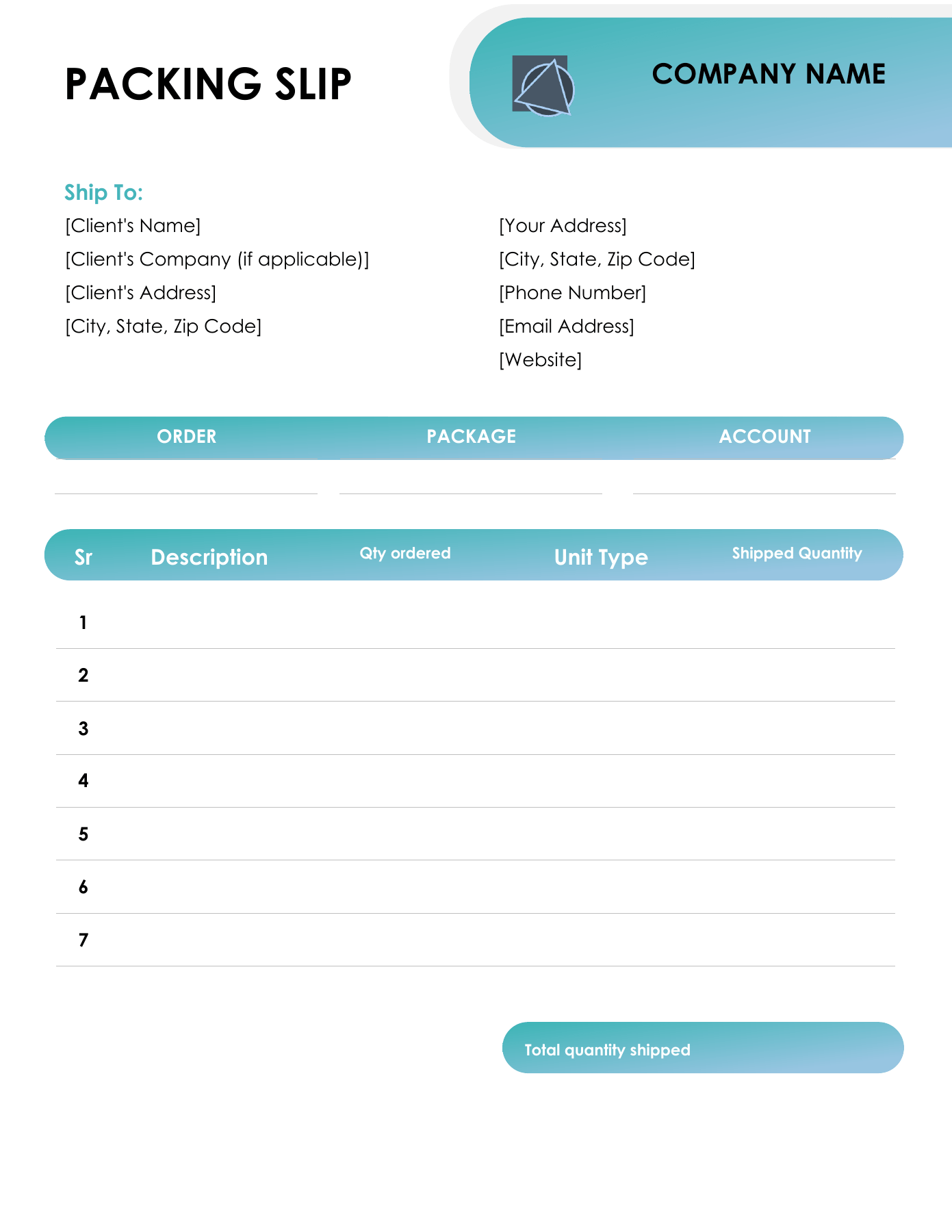
Template 04 — Ordered and shipped quantities
This layout puts the description, quantity ordered, unit type and shipped quantity side by side. It is easy to check an order line against the goods on the packing bench, especially when only part of the order is ready.
The page also includes sender and ship-to details, plus order, package and account references. Record what is actually in this package in the shipped column; do not copy the ordered quantity automatically.
Template 04 — Ordered and shipped quantities
Template 04 — Ordered and shipped quantities
Template 05 — Partial-shipment status slip
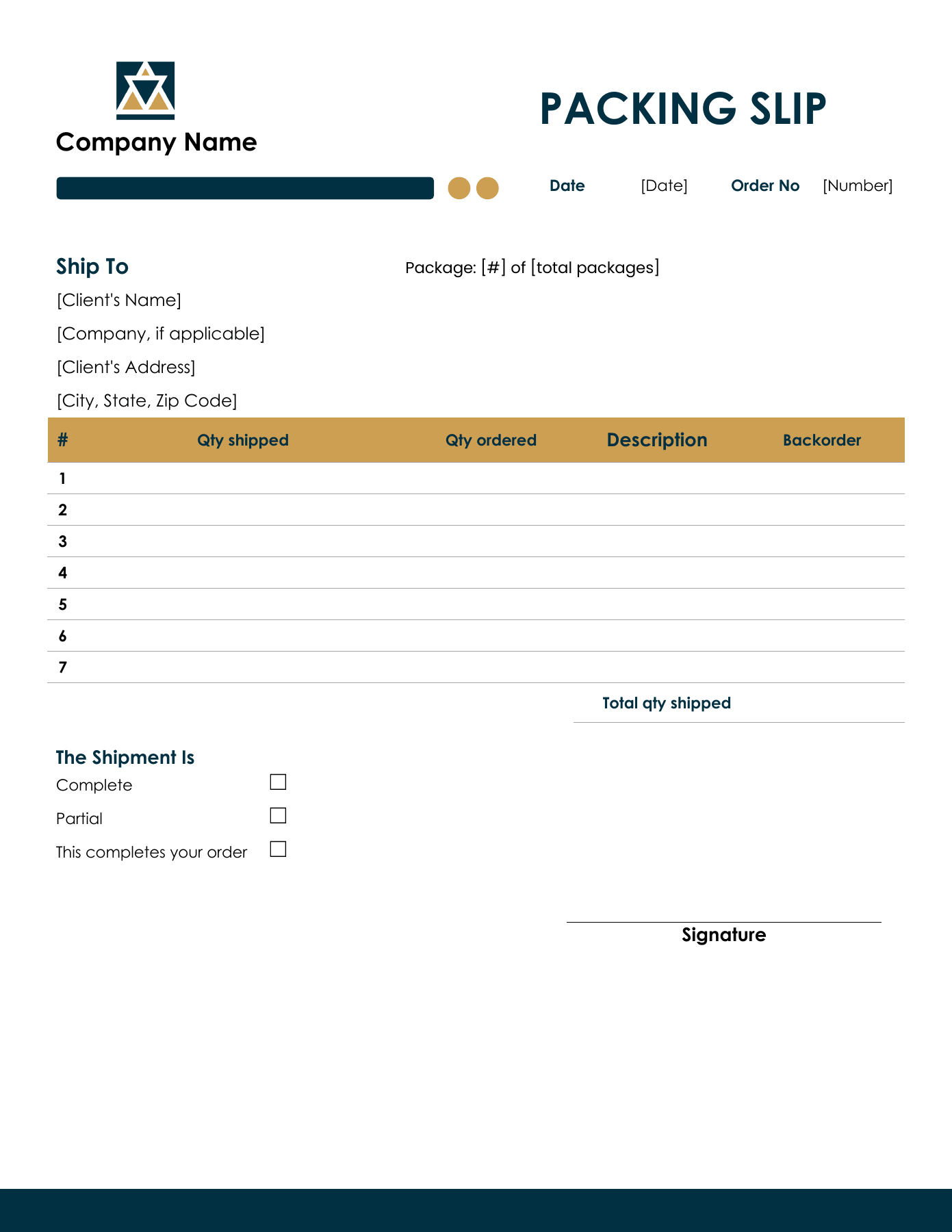
For an order leaving in stages, this form has separate shipped, ordered and backorder columns. A package-count field and complete/partial status checkboxes help explain how the current box fits into the order. There is also a signature space for your chosen packing or checking step.
Use the backorder column for items still awaiting fulfillment, and add a short explanation if the remainder is coming in another package instead. Do not mark “This completes your order” while items remain outstanding.
Template 05 — Partial-shipment status slip
Template 05 — Partial-shipment status slip
Template 06 — Shipment record with sign-off
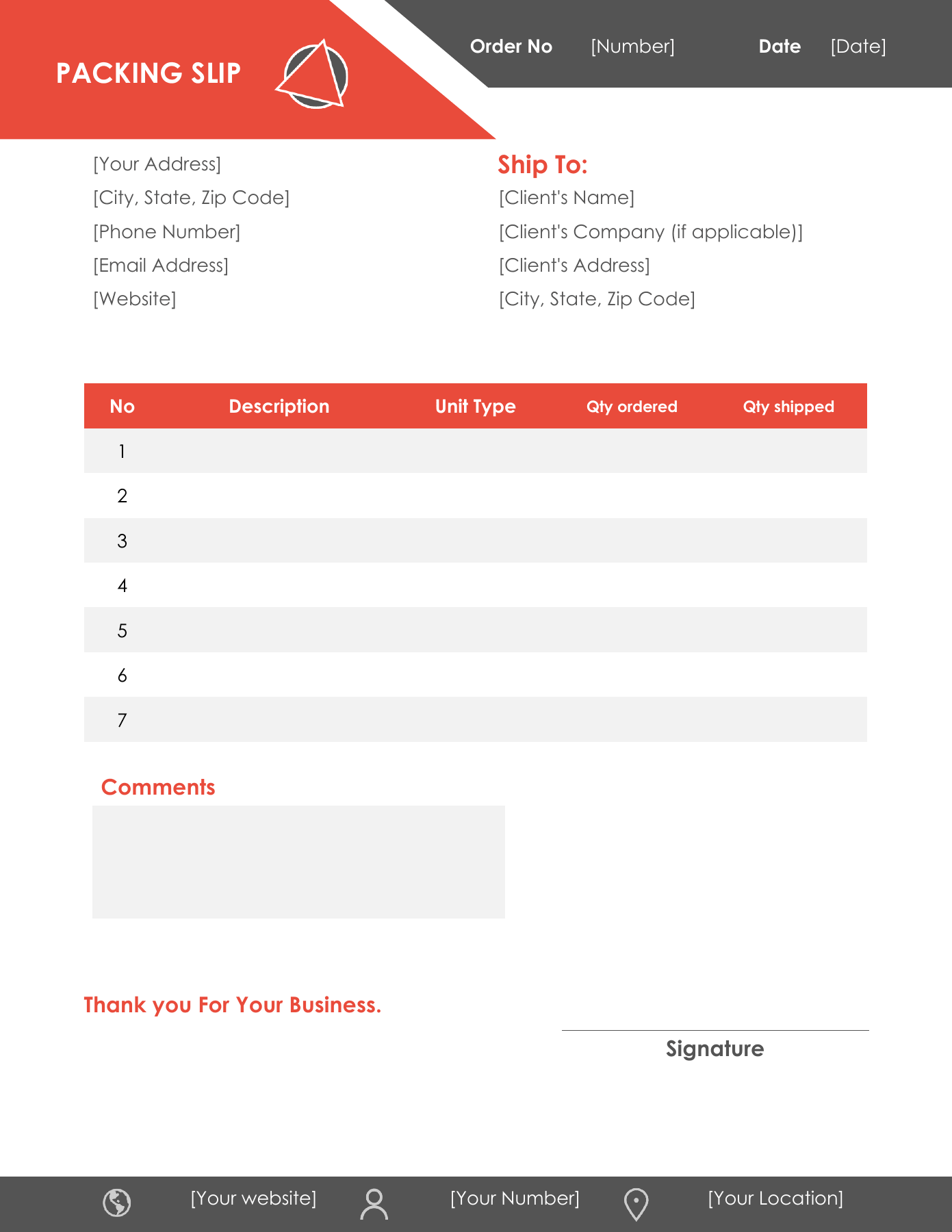
Ordered and shipped quantities, unit types, a comments area and a signature line make this layout useful for an internal transfer or a shipment checked by more than one person. Sender and recipient details remain visible above the item table.
Decide who signs in your workflow and label the line accordingly, such as “Packed by” or “Checked by.” A packer’s signature records that step; it does not show that the recipient has received the goods.
Template 06 — Shipment record with sign-off
Template 06 — Shipment record with sign-off
Template 07 — Neutral packing slip
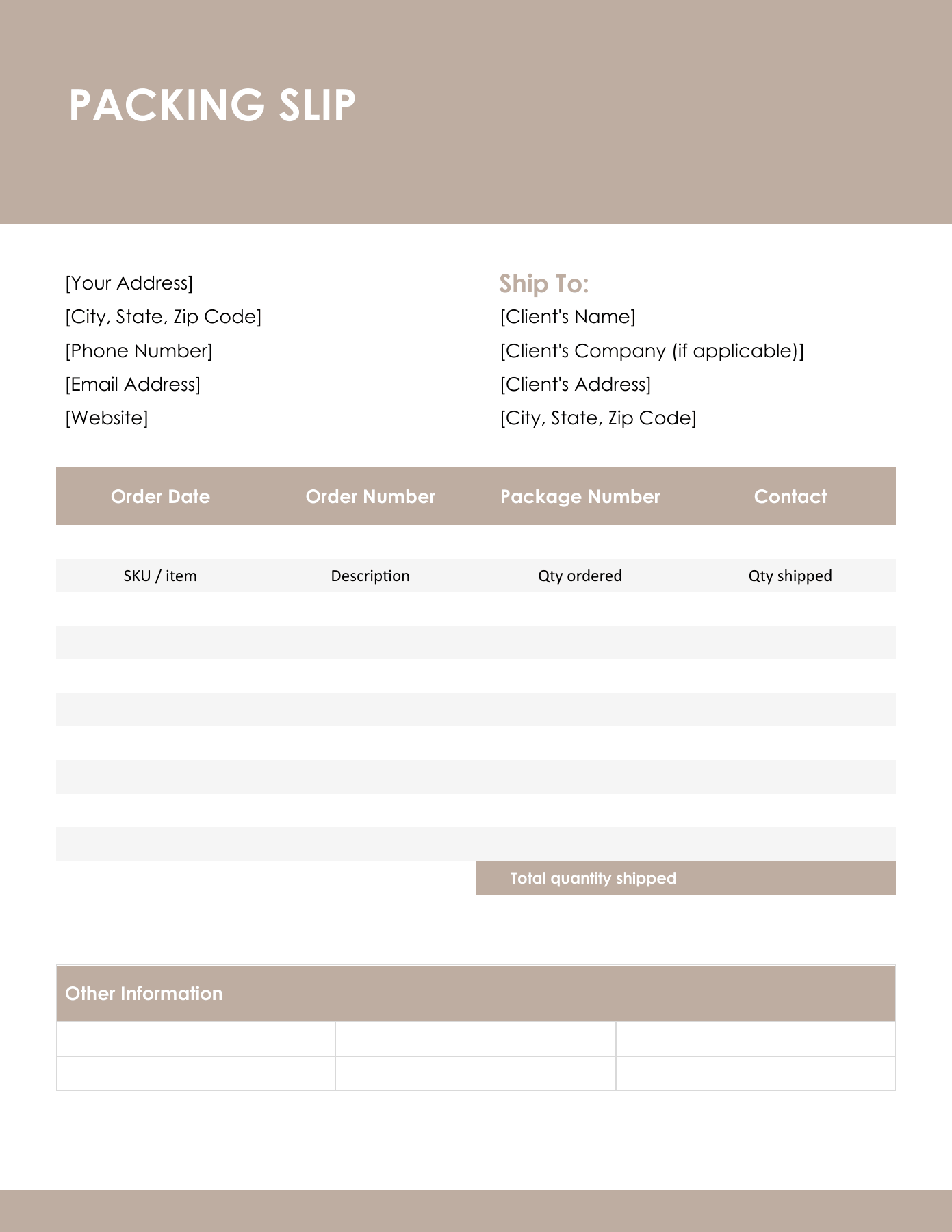
This plain layout works well when you want the shipment details to take priority over branding. It includes order and package references, ship-to details, and labeled columns for SKU/item, description, quantity ordered and quantity shipped.
Use the other-information area for a short note the recipient needs, such as which part of the order will arrive separately. Leave out payment details and unrelated internal notes.
Template 07 — Neutral packing slip
Template 07 — Neutral packing slip
What a packing slip does
A packing slip lists the contents of an order or package so the sender and recipient can compare the paperwork with the goods. It belongs inside the package. It serves a different purpose from the shipping label on the outside or the invoice used for billing.
If you also prepare goods before packing or document larger consignments, this comparison helps distinguish the common documents. Check the requirements of your actual carrier or shipping process for transport paperwork.
| Document | Main job | Where it is used |
|---|---|---|
| Packing slip | Shows what is inside this order | Inside the package |
| Invoice | Shows charges and payment terms | Sent to the buyer or accounting |
| Shipping label | Routes the parcel through the carrier | Outside the package |
| Picking list | Tells staff what to collect | In the warehouse before packing |
| Packing list | Summarizes a larger shipment or consignment | With the shipment |
| Bill of lading | Records a freight handoff and transport details | In the freight process |
For international freight, the air waybill or bill of lading is transport paperwork with its own purpose. The International Trade Administration explains these documents and the more detailed export packing list. These everyday Word slips are not substitutes for the documents your carrier or freight forwarder requires.
How to fill out your packing slip
Start with the order number, date, recipient and delivery address. Use the package reference to distinguish boxes, such as “1 of 2,” when one order travels in several packages. Each slip should describe its own box.
Next, copy the item code and a recognizable description from the order. Check the unit type: ten individual mugs and ten cases of mugs are different quantities. Count the goods before entering the shipped quantity, and use the ordered column where the layout provides one.
For example, order SO-1048 contains 12 white ceramic mugs, SKU MUG-WHT. Ten are packed today and two are backordered. On Template 05, enter 12 ordered, 10 shipped and 2 backordered, then mark the shipment partial. Add a note such as “Two mugs are backordered and will ship separately” if that is the confirmed plan.
If the remaining two mugs are already packed in a second box, describe them as a separate package rather than a backorder. Put a matching slip in that box and give both boxes clear package numbers.
Check any quantity total manually. Add quantities only when the units are comparable; do not combine cases, individual items and kilograms into an unexplained total. Keep prices, payment-card details and unnecessary personal information off the slip.
Print, check and pack
Save a filled copy separately from your blank master. In Word, use File > Print to inspect the preview and confirm that the address, table rows and any notes fit on the page. If you need a PDF copy of a completed slip, export one from Word; the downloads here are DOCX templates.
Before sealing the box, compare the slip with the goods and the order. Check the recipient, item descriptions, counts and explanation of any short shipment. Put the slip inside where it can be found easily.
Keep the carrier’s shipping label visible outside the package. USPS package-preparation guidance also recommends putting an extra label or slip with the sender’s and delivery addresses inside the parcel. That backup address information does not replace the exterior label or postage.
Packing slip FAQs
Can I use a packing slip without prices?
Yes. These layouts focus on goods and quantities. That is useful for gifts and for orders billed separately. Put prices, taxes and payment terms on the invoice when they are needed.
Can I add more item rows in Word?
Yes. Insert a row in the item table and match the existing formatting. Check Print Preview afterward: extra rows may push notes or signatures onto another page. For a long order, use a clearly identified continuation page rather than reducing the text until it is difficult to read.
Which template should I use for a partial shipment?
Template 05 has a backorder column and status checkboxes. Templates 04, 06 and 07 also show ordered and shipped quantities. Explain whether the remainder is backordered, coming in another package or otherwise resolved; a smaller shipped number alone does not tell the recipient why.
Is a packing slip the same as a packing list?
The terms sometimes overlap. Here, the templates are designed for everyday order fulfillment and checking what is inside a parcel. For a broader shipment inventory, see our shipping list templates and shipping packing list examples, and select the fields your shipment actually needs.
Are Excel or ready-made PDF versions included?
This collection provides Word DOCX files. There are no spreadsheet formulas or separate PDF downloads. You can edit a DOCX in Word and print it, or save your own completed copy as a PDF.
